
TL;DR

Prime made for students and young adults
- Fast, free delivery for dorm and study essentials
- Prime Video and Amazon Music included
- Member-only deals
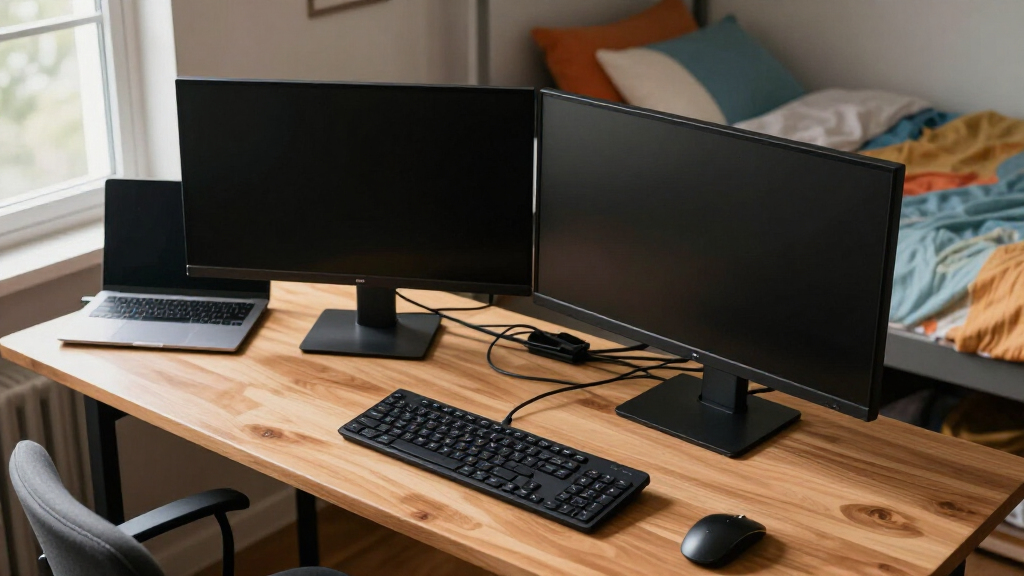
You can set up a dual monitor station in a small dorm by choosing compact, adjustable monitors, using wall mounts, and organizing cables. Recent tech like USB-C and portable monitors make it easier and cheaper than ever to boost your productivity in tight spaces.
Choose 21-24 inch monitors with slim profiles and USB-C connectivity to save space and reduce clutter.
Use wall mounts or monitor arms to free up your desk surface and create flexible viewing angles.
Organize cables with clips or sleeves, and consider wireless peripherals to keep your space tidy.
Position monitors at eye level, about 20-30 inches from your face, to prevent neck and eye strain.
Stay updated on tech trends like portable monitors and wireless display tech to make your dorm setup smarter.
How to Pick the Perfect Monitors for Your Tiny Dorm Space
Choosing monitors that fit your cramped dorm desk is crucial because it directly impacts your comfort and efficiency. Monitors around 21 to 24 inches strike a balance—they’re large enough to see details clearly, which is essential for research, coding, or design work, but small enough to fit comfortably on a limited surface. Slim profiles and lightweight designs are important because heavy, bulky monitors can make repositioning or mounting difficult, and they occupy more space. USB-C monitors are especially advantageous—they connect with a single cable, reducing clutter and simplifying setup, which is vital in tight spaces. For example, a 24-inch ASUS ZenScreen with a 1920×1080 resolution offers crisp clarity without overwhelming your desk. Remember, resolution affects image sharpness and clarity; higher resolutions are better for detailed work, but size and space constraints may lead you to opt for Full HD or 2K options. Matching your monitor size to your typical tasks ensures you’re not wasting space on a screen you don’t need—if your work is mainly writing or research, smaller or portable options can suffice, freeing up room for other essentials.Popular right now

Bose QuietComfort True Wireless Noise-Cancelling Earbuds, Black

Bose QuietComfort Ultra Wireless Noise-Cancelling Headphones with Spatial Audio, Black

Bose QuietComfort Wireless Noise Cancelling Headphones, Sandstone
As an affiliate, we earn on qualifying purchases.
Creative Ways to Free Up Desk Space Without Losing Your Monitors
Your desk in a small dorm is a limited resource, so it’s essential to think beyond traditional setups. Wall mounts or clamp-on monitor arms are game-changers because they lift monitors off the desk surface, creating more room for studying, writing, or even relaxing. This not only maximizes available space but also allows you to position your screens at optimal ergonomic angles, reducing neck and eye strain. Adjustable stands with a slim footprint help too; they can be repositioned easily and can accommodate different viewing angles depending on your task. Imagine your monitor floating just inches from the wall, giving you space to store books, supplies, or even a small speaker underneath. Stacking stands or dual monitor brackets can keep your setup organized and flexible, allowing you to switch between single and dual-screen configurations effortlessly. Additionally, multi-purpose furniture—such as a desk with built-in shelves or storage compartments—can help you organize cables, peripherals, and other essentials, keeping your limited space tidy and functional. These strategies are about making your environment adaptable and clutter-free, which enhances both productivity and comfort.Step-by-Step: How to Set Up Your Dual Monitors in 5 Easy Moves
- Check your computer or laptop ports carefully. Most dorm desktops or laptops support HDMI, DisplayPort, or USB-C, but the number and type of ports vary. Choosing the right cables or adapters is crucial for a seamless connection. Using the correct cables ensures stable image quality and reduces setup frustration. If your device has limited ports, consider a docking station or USB hub to expand connectivity. This step is vital because incompatible or insufficient ports can limit your ability to use dual monitors effectively, forcing compromises or additional purchases.
- Position your monitors at eye level to promote good posture and prevent neck strain. Use adjustable stands or wall mounts to achieve this. Proper positioning means your eyes are level with the top third of the screen, reducing the need to tilt your head up or down. Place your primary monitor directly in front of you for focus, and angle the second to suit your multitasking needs. This setup encourages a natural viewing angle, which minimizes fatigue during long study sessions and enhances overall comfort.
- Organize your cables meticulously. Use cable clips, sleeves, or conduit to keep cords tidy and out of the way. Labeling cables can be helpful if you need to disconnect or reconfigure your setup frequently. Proper cable management prevents tangling, reduces accidental disconnections, and maintains a clean aesthetic. Over time, this organization reduces stress and saves time, making your workspace more efficient and less cluttered.
- Adjust monitor settings for optimal comfort. Calibrate brightness, contrast, and color to match your environment, reducing eye strain. Keep monitors about an arm’s length away—roughly 20-30 inches—to ensure comfortable viewing and reduce eye fatigue. Proper calibration and positioning are interconnected; poorly adjusted settings can cause glare or discomfort, even if the physical placement is ideal. Taking the time to fine-tune these settings can significantly improve your focus and reduce the risk of headaches or visual fatigue during extended use.
- Test your setup thoroughly. Open multiple windows, check for glare or reflections, and ensure your neck remains relaxed during use. Make adjustments to monitor angles and heights as needed. Observe how your eyes and neck feel after a few minutes of work; if discomfort arises, tweak the positioning. This final step ensures your workspace is ergonomically sound and tailored to your preferences, helping you maintain productivity and comfort over long periods.
Compare How Different Monitors and Mounts Fit Your Small Dorm
| Feature | Small Flat-Panel Monitor | Portable Monitor | Wall-Mountable Monitor |
|---|---|---|---|
| Size | 21-24 inches, slim profile | 15-17 inches, ultra-light | Depends on mount, typically 22-24 inches |
| Connectivity | HDMI, DisplayPort, USB-C | USB-C, HDMI | Same as above, with mount compatibility |
| Portability | Stable on desk, not portable | Very portable, easy to store | Fixed on wall, no movement |
| Space Savings | Moderate, with stands | Max, mounts off desk | Max, frees desk entirely |
Quick Tips to Keep Your Dorm Setup Ergonomic and Clutter-Free
Your dual monitors should be positioned at eye level—not only to prevent neck strain but also to promote better focus and reduce fatigue. When monitors are too low or too high, your neck muscles work harder to maintain a comfortable viewing angle, which can lead to discomfort over time. Use adjustable monitor arms or stands to fine-tune the height and angle, ensuring your screens align naturally with your line of sight. Keep your keyboard and mouse close to your body, avoiding reaching forward or stretching to minimize shoulder and wrist strain. Cable clutter is not just a visual distraction—it can also limit your movement and create hazards. Tidy cords with clips, sleeves, or cable management boxes to keep everything organized. Wireless peripherals further eliminate cable mess and give you more freedom of movement. Remember to take short breaks every hour—stretch your neck, shoulders, and eyes—to prevent repetitive strain injuries and maintain focus during long study sessions. These small ergonomic adjustments are vital for sustaining comfort and productivity in a confined space.Latest Tech Trends Making Dorm Dual Monitors Smarter and Easier
USB-C monitors are revolutionizing how students set up their workspace by allowing a single cable to transmit power, video, and data. This reduces clutter and simplifies connections, making it easier to switch or relocate monitors. Portable monitors are shrinking in size and weight—some as thin as a paperback—making storage and transport effortless, which is perfect for students moving between dorms or sharing spaces. Adjustable, affordable monitor arms are more versatile than ever, enabling you to position screens precisely where you want them without cluttering your desk. Wireless display technologies like Miracast or Chromecast are expanding their capabilities, allowing you to mirror or extend your screen without any cables. These innovations mean you can create a more flexible, tidy, and ergonomic workspace with less effort and expense—ideal for the limited space of a dorm room.Key Facts That Make Or Break Your Dorm Dual Monitor Setup
- Dual monitors can boost productivity by up to 42%, according to recent studies. This significant increase stems from reduced time spent switching between windows and tasks, enabling a smoother workflow. However, simply adding more screens isn’t enough; proper placement and ergonomic setup are essential to realize these benefits without causing strain or discomfort.
- The ideal distance from your eyes to the monitor is about 20-30 inches—roughly an arm’s length. Sitting closer can cause eye strain, while sitting too far reduces readability and engagement. Correct positioning ensures your eyes don’t have to strain or move excessively, which can lead to fatigue over time.
- Proper ergonomic setup—such as monitor height, angle, and distance—reduces eye strain, neck pain, and repetitive stress injuries. Investing time in adjusting your workspace can prevent long-term health issues and improve focus, especially during extended study sessions. The tradeoff is that initial setup might take a few minutes, but the long-term comfort gains are well worth it.
- Starter monitors for dorms often cost around $100-$150, with basic adjustable stands. This affordability makes dual monitor setups accessible to most students. While cheaper options may lack advanced features like height adjustment or color calibration, they still provide substantial productivity benefits. Weighing costs against features helps you choose monitors that fit your budget and needs without sacrificing essential ergonomics or usability.
Your Burning Questions About Dorm Dual Monitor Setups Answered
- Q: How do I connect two monitors to my laptop or desktop? Check your device’s ports carefully because compatibility varies. Most support HDMI, DisplayPort, or USB-C, but some may require adapters or docking stations. Using the correct cables ensures stable image quality and prevents connection issues. If your device has limited ports, a docking station or USB hub can expand your options, making dual monitor setups straightforward. Ensuring compatibility is crucial because incompatible connections can lead to flickering, resolution problems, or no display at all, hindering your productivity.
- Q: What monitor size is best for small dorms? 21 to 24 inches strikes the right balance—large enough for multitasking and detailed work, yet compact enough not to overwhelm your space. Larger monitors can dominate a small desk, making your workspace feel cluttered and cramped, which can cause discomfort and reduce efficiency. Smaller monitors, while space-saving, may limit your ability to work comfortably on detailed tasks. Choosing the right size involves considering your typical workload and space constraints to find an optimal compromise that enhances functionality without sacrificing comfort.
- Q: How do I save desk space? Using wall mounts, clamp-on monitor arms, or stacking stands can lift your screens off the desk, freeing up valuable surface area. Multi-purpose furniture, like desks with built-in shelves or compartments, helps organize peripherals and supplies, reducing clutter. These options allow you to maintain a clean, organized workspace, which is essential in small dorms where every inch counts. The tradeoff is that some mounting solutions require tools and installation time, but the long-term benefit is a more flexible and spacious environment conducive to focused work.
- Q: Are wireless display options reliable? Wireless tech like Miracast or Chromecast can be convenient for casual use, reducing cable clutter and allowing quick repositioning. However, for activities requiring high responsiveness, such as gaming or video editing, wired connections tend to provide better stability and lower latency. The reliability of wireless options depends on your Wi-Fi strength and interference levels. Balancing convenience and performance is key—wireless setups are excellent for general productivity but may not suit all demanding tasks.
- Q: How can I make my setup more ergonomic? Position both monitors at eye level, about an arm’s length away, and ensure they are aligned to reduce neck and eye strain. Keep your keyboard and mouse close to your body, avoiding reaching or stretching. Take regular breaks—every 30-60 minutes—to stretch and relax your muscles. Using adjustable stands or monitor arms makes it easy to fine-tune your setup. These ergonomic practices help prevent headaches, repetitive strain injuries, and fatigue, making your dual monitor setup sustainable for long study sessions and everyday use.
Frequently Asked Questions
How do I connect two monitors to my laptop or desktop?
Check your device’s ports first; most support HDMI, DisplayPort, or USB-C. Use the appropriate cables or adapters. Some laptops support multiple displays via docking stations or USB hubs, which can simplify the process and ensure stable connections.What is the best monitor size for a small dorm room?
Between 21 and 24 inches is ideal because it balances screen real estate with space constraints. Larger monitors might dominate your desk, making it feel cramped, while smaller ones could limit your multitasking efficiency. Choose based on your typical tasks and available space.How can I save space on my desk without sacrificing my monitors?
Utilize wall mounts, clamp-on arms, or stacking stands to elevate your monitors off the desk. Incorporate multi-purpose furniture like desks with built-in shelves or storage compartments. These strategies optimize your limited space, keeping your area organized and functional.Are wireless monitors or display options reliable?
Wireless options like Miracast or Chromecast are convenient for general use, reducing cable clutter and allowing flexible positioning. However, they may introduce lag or connectivity issues during high-demand tasks like gaming or video editing. For critical tasks, wired connections remain more dependable.What ergonomic tips should I follow for dual monitors?
Position both monitors at eye level and about an arm’s length away, ensuring they are aligned to minimize neck strain. Keep your keyboard and mouse close, and take regular breaks to stretch and relax. Proper ergonomic setup reduces fatigue and supports long-term comfort during extended use.Conclusion
A well-planned dual monitor station turns a cramped dorm desk into a productivity powerhouse. Small space? No problem. With the right tech, positioning, and organization, you can double your screen real estate without sacrificing comfort or breaking your budget. That tiny corner of your room can become your command center — all it takes is a little clever thinking.