
TL;DR
Dorm Wi-Fi often struggles with congestion, but upgrading your hardware, optimizing placement, and managing devices can dramatically boost your connection. Stay ahead with real-world tips to get the most out of limited bandwidth.
Place your router centrally, at least 3 feet off the ground, and away from interference sources.
Upgrade to a Wi-Fi 6 router or mesh system for better device handling and coverage.
Use QoS settings to prioritize streaming and study apps, limiting background activity.
Switch to less congested Wi-Fi channels with tools like Wi-Fi Analyzer for cleaner signals.
Secure your network with strong passwords and encryption to prevent slowdowns caused by unauthorized users.
Why Dorm Wi-Fi Gets Slow and How to Fix It Fast
Most dorm networks are overloaded, with dozens of students streaming, gaming, and studying all at once. This congestion causes slow speeds, lag, and dropped connections. The key is managing your usage and optimizing your setup.
Start by understanding that bandwidth is shared. When many devices use the same network, speeds drop for everyone. To fix this, limit background downloads, pause automatic updates, and schedule large downloads for off-peak hours.
It’s also important to recognize that not all devices consume bandwidth equally. Streaming videos or online gaming can use significantly more data than simple browsing or email. By being mindful of what activities you engage in during peak hours, you can help reduce network strain and improve overall performance for everyone.
As an affiliate, we earn on qualifying purchases.
Best Placement Tips for Your Dorm Router (Get Better Signal Fast)
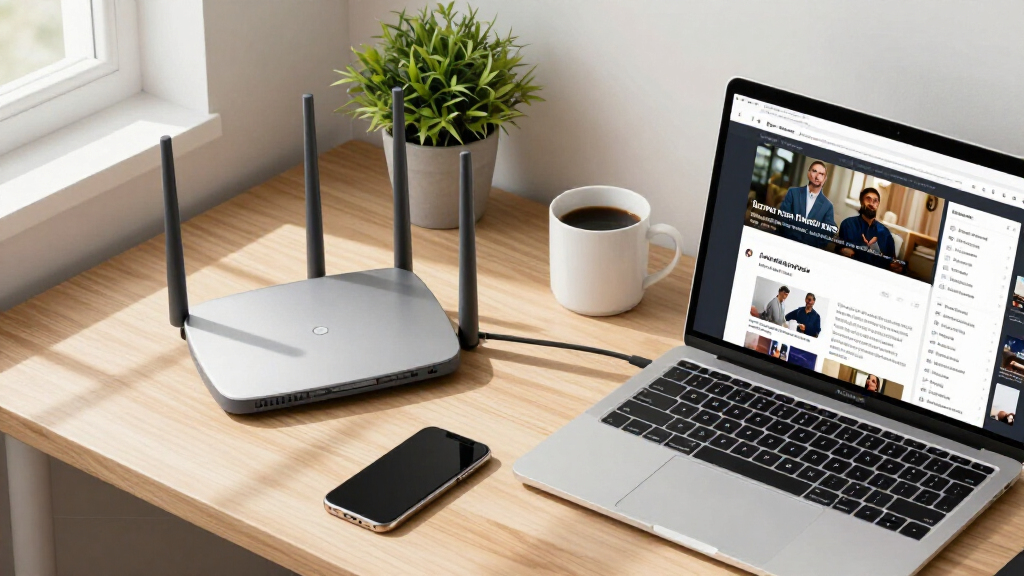
Where you put your router can make or break your connection. Think of it as the heart of your Wi-Fi — the more central, the better coverage you get. Avoid placing it behind thick walls, inside closets, or near electronics that cause interference.
Imagine your dorm room as a small box. Place the router on a shelf in the middle, at least 3 feet off the floor, and away from metal objects. If you share a room, positioning it near where you study or use your devices most often ensures your primary devices get the strongest signal. This placement minimizes dead zones and ensures your devices are not competing with other electronic interference sources, which can significantly degrade signal quality and speed.
mesh Wi-Fi system for small spaces
As an affiliate, we earn on qualifying purchases.
As an affiliate, we earn on qualifying purchases.
Upgrade Your Gear: What Router and Equipment Make a Big Difference
Investing in the right hardware can transform your Wi-Fi experience. Look for dual-band or Wi-Fi 6 routers, which handle multiple devices more efficiently and offer faster speeds. For example, a TP-Link Archer AX50 (around $150) supports Wi-Fi 6 and can serve several devices simultaneously without lag.
In larger dorms or apartments, mesh Wi-Fi systems like Google Nest Wifi or Eero can blanket your space with seamless coverage, reducing dead zones. These systems often have multiple nodes that communicate with each other, providing a more reliable connection across a larger area, which is especially useful if your dorm setup involves multiple rooms or floors.
Don’t forget Ethernet adapters. Connecting your laptop directly via Ethernet (if your dorm provides ports) offers the most stable, fastest connection for studying or streaming. Wired connections bypass potential interference and congestion that wireless signals may face, leading to more consistent performance especially during critical tasks like online exams or high-definition streaming.
As an affiliate, we earn on qualifying purchases.
How to Manage Devices and Traffic for Peak Performance
Managing your devices is the easiest way to prioritize your needs. Use your router’s Quality of Service (QoS) settings to give streaming or study apps higher priority. For example, set Netflix or Zoom to get bandwidth first. This prioritization ensures that during busy times, your most important applications get the bandwidth they need to function smoothly, which can significantly reduce lag and buffering. Without this, less critical devices or background apps might consume bandwidth that your essential activities require, leading to frustrating delays.
Limit background activity: close unnecessary apps, pause automatic updates, and avoid streaming on multiple devices at once. If your router supports it, create profiles for different devices to allocate bandwidth. This prevents less critical devices from hogging the connection, especially during important study sessions or live classes. By actively managing device traffic, you reduce congestion and ensure your bandwidth is available when you need it most.
Also, consider scheduling heavy downloads or updates during off-hours to free up bandwidth during your peak study or streaming sessions. This strategic management keeps your connection stable and fast when it matters most, helping you avoid interruptions that can disrupt your focus or entertainment.
As an affiliate, we earn on qualifying purchases.
Reduce Interference and Boost Signal Quality in Your Dorm
Electronic interference can sabotage your Wi-Fi signal. Keep your router away from microwaves, cordless phones, and Bluetooth devices that operate on similar frequencies. These devices can create noise that disrupts your Wi-Fi, causing slowdowns or dropouts. Choosing a location away from these sources ensures your router’s signal remains clear and strong.
Switch your Wi-Fi channel to a less congested one—many routers allow this in settings. Use apps like Wi-Fi Analyzer to identify crowded channels in your area. Selecting a less congested channel reduces interference from neighboring networks, which often operate on the same default channels, leading to faster and more stable connections. For example, changing from channel 6 to channel 11 can significantly improve your signal quality if nearby networks are congested on channel 6. This proactive step minimizes the ‘noise’ that causes slowdowns and dropouts, especially in densely populated dorm environments. While changing channels is simple, understanding the environment’s interference sources and choosing the optimal channel can make a noticeable difference in your Wi-Fi stability and speed.
Security Tips to Keep Your Wi-Fi Safe and Fast
Secure your network to prevent neighbors or strangers from hogging your bandwidth. Use strong WPA3 passwords, or at least WPA2, if WPA3 isn’t available. Change your default router password too. This prevents unauthorized users from accessing your network and consuming your bandwidth, which can slow down your connection and pose security risks. An unsecured network is vulnerable to intrusions that can not only slow down your connection but also compromise your personal data.
Avoid using unsecured networks for studying or submitting exams—these can be slow and risky. Enable network encryption and disable remote management features to keep your setup safe. A secure network acts like a private lane, ensuring only authorized devices connect and share your bandwidth. This prevents malicious or accidental overuse, maintaining optimal speeds for your activities. Strong security practices are essential to safeguarding your privacy and ensuring your Wi-Fi remains fast and reliable.
Latest Trends: Wi-Fi 6, Mesh, and Network Management Apps
Wi-Fi 6 is the newest standard, offering higher speeds, lower latency, and better handling of multiple devices. Many colleges are upgrading their infrastructure to support it, making it a smart investment for students. Its efficiency means less lag during online classes or streaming, even when many devices are connected simultaneously, which is common in dorms.
Mesh Wi-Fi systems spread coverage evenly across larger dorms or apartments, eliminating dead zones. Apps like Netgear Orbi or Eero let you monitor and control your network easily. These systems can adapt to your usage patterns, automatically optimizing signal strength and reducing congestion. Investing in these technologies ensures your Wi-Fi keeps pace with your growing digital demands, minimizing frustrations and maximizing productivity.
By staying current with these technologies, you ensure your Wi-Fi keeps pace with your needs, whether streaming 4K videos or engaging in online classes. Investing in these advancements means fewer frustrations and more reliable performance, which can make a tangible difference in your daily digital activities.
Frequently Asked Questions
How can I improve Wi-Fi speed in my dorm room?
Start with router placement: position it centrally and elevated. Upgrade to a Wi-Fi 6 router if possible and limit background apps during study or streaming. Using Ethernet adapters for a wired connection also boosts speed and stability.
What equipment should I invest in for better Wi-Fi?
A dual-band or Wi-Fi 6 router is a smart choice, especially if your dorm allows personal equipment. Mesh systems like Eero or Google Nest Wifi help cover larger spaces. Ethernet adapters provide the fastest, most reliable connection for critical tasks.
How do I prioritize my streaming or study devices?
Access your router’s QoS settings and assign higher priority to your streaming apps or devices. This ensures they get the bandwidth they need, even if others are using the network heavily.
Is it worth upgrading my dorm Wi-Fi plan?
If your school allows, upgrading your plan or adding a personal router can improve speeds. Otherwise, optimizing your current setup with better placement and management is your best bet.
How can I reduce Wi-Fi interference?
Keep your router away from microwaves, cordless phones, and Bluetooth devices. Switch to a less congested Wi-Fi channel—using analyzer apps helps find the best one in your area.